
簡易書籍登録アプリケーション作成(バリデーション版)
7.2 簡易書籍登録アプリケーション作成(バリデーション版)
7.2.1 アプリケーション概要
1 アプリケーション作成の目的
6.5で作成したプロジェクトをもとに、バリデーションの利用方法を学習していきます。
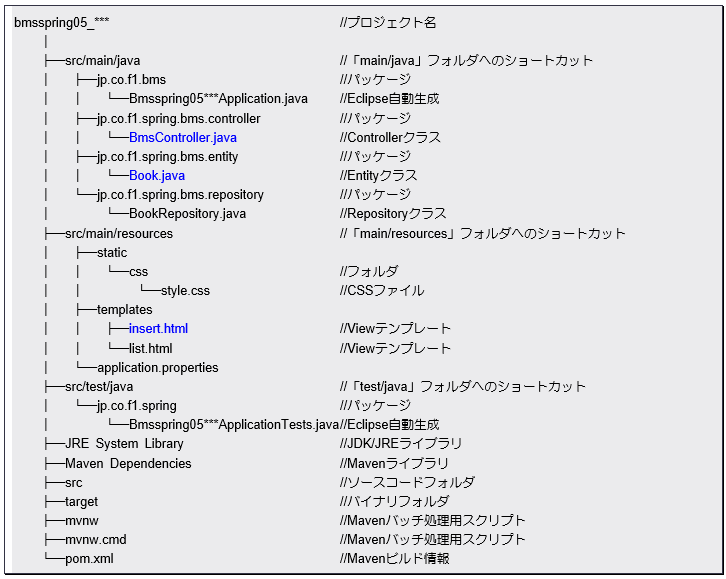
2 簡易書籍登録アプリケーション(バリデーション版)プロジェクト構成(完成状態)

7.2.2 エンティティクラスの修正
1 「Book.java」クラスファイルに以下に示すソースコードを追記する。
■ソースコード
【ファイル名:Book.java】
7.2.3 コントローラークラスの修正
1 「BmsController」クラスファイルに以下に示すソースコードを追記する。
■ソースコード
【ファイル名:BmsController.java】
7.2.4 テンプレートファイルの作成
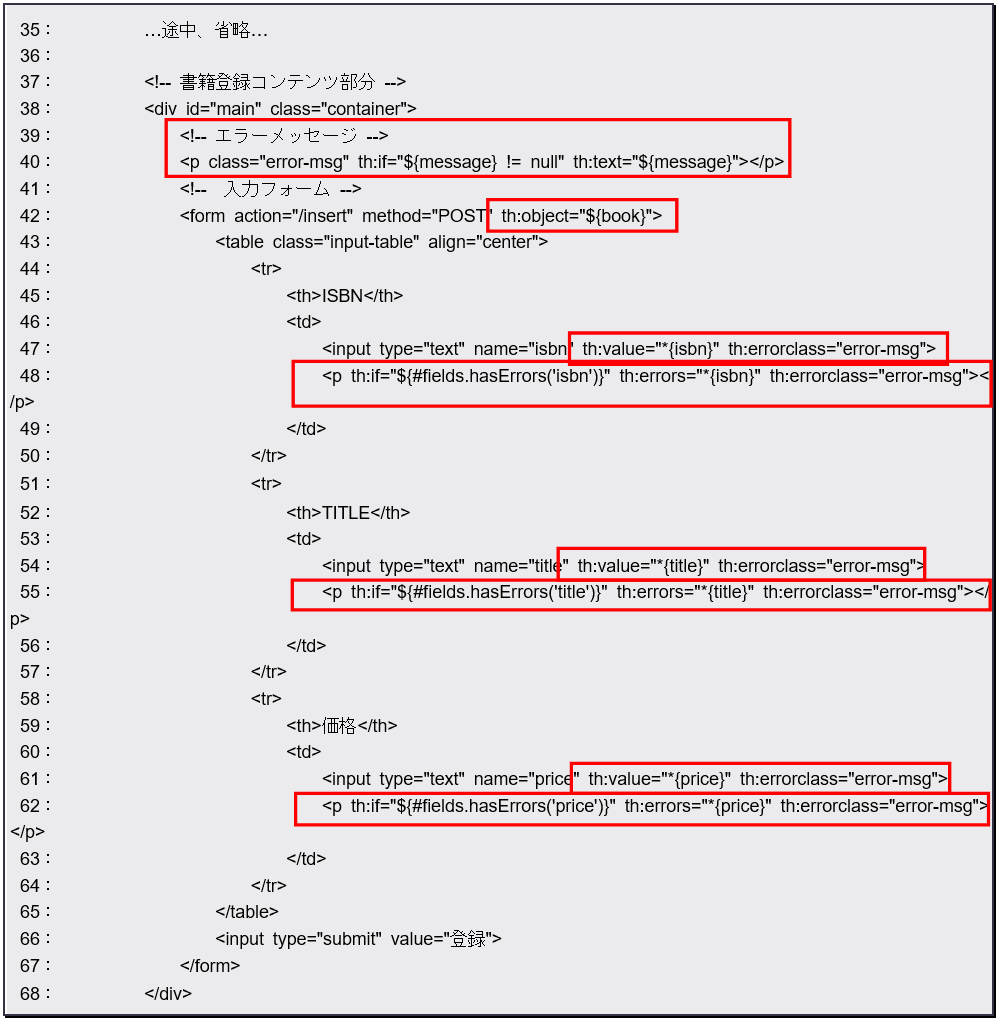
1 「insert.html」ファイルに以下に示すソースコードを記述する。
■ソースコード
【ファイル名:insert.html】
 [html]
<!DOCTYPE html>
<html>
<head>
<meta charset=”UTF-8″>
<title>書籍登録</title>
<link rel=”stylesheet” th:href=”@{/css/style.css}”>
</head>
<body>
<!– ブラウザ全体 –>
<div id=”wrap”>
<!– ヘッダー部分 –>
<header>
<div class=”container”>
<h1>書籍管理システムSpring版 Ver.0.5</h1>
</div>
</header>
<!– メニュー部分 –>
<div id=”menu”>
<div class=”container”>
<!– ナビゲーション –>
<div id=”nav”>
<ul>
<li><a href=”#”>[メニュー]</a></li>
<li><a href=”/list”>[書籍一覧]</a></li>
</ul>
</div>
<!– ページタイトル –>
<div id=”page_title”>
<h2>書籍登録</h2>
</div>
</div>
</div>
<!– 書籍登録コンテンツ部分 –>
<div id=”main” class=”container”>
<!– エラーメッセージ –>
<p class=”error-msg” th:if=”${message} != null” th:text=”${message}”></p>
<!– 入力フォーム –>
<form action=”/insert” method=”POST” th:object=”${book}”>
<table class=”input-table” align=”center”>
<tr>
<th>ISBN</th>
<td>
<input type=”text” name=”isbn” th:value=”*{isbn}” th:errorclass=”error-msg”>
<p th:if=”${#fields.hasErrors(‘isbn’)}” th:errors=”*{isbn}” th:errorclass=”error-msg”></p>
</td>
</tr>
<tr>
<th>TITLE</th>
<td>
<input type=”text” name=”title” th:value=”*{title}” th:errorclass=”error-msg”>
<p th:if=”${#fields.hasErrors(‘title’)}” th:errors=”*{title}” th:errorclass=”error-msg”></p>
</td>
</tr>
<tr>
<th>価格</th>
<td>
<input type=”text” name=”price” th:value=”*{price}” th:errorclass=”error-msg”>
<p th:if=”${#fields.hasErrors(‘price’)}” th:errors=”*{price}” th:errorclass=”error-msg”></p>
</td>
</tr>
</table>
<input type=”submit” value=”登録”>
</form>
</div>
<!– フッター部分 –>
<footer>
<div class=”container”>
<h4>Copyright© 2025 All Right Reserved.</h4>
</div>
</footer>
</div>
</body>
</html>
[/html]
[html]
<!DOCTYPE html>
<html>
<head>
<meta charset=”UTF-8″>
<title>書籍登録</title>
<link rel=”stylesheet” th:href=”@{/css/style.css}”>
</head>
<body>
<!– ブラウザ全体 –>
<div id=”wrap”>
<!– ヘッダー部分 –>
<header>
<div class=”container”>
<h1>書籍管理システムSpring版 Ver.0.5</h1>
</div>
</header>
<!– メニュー部分 –>
<div id=”menu”>
<div class=”container”>
<!– ナビゲーション –>
<div id=”nav”>
<ul>
<li><a href=”#”>[メニュー]</a></li>
<li><a href=”/list”>[書籍一覧]</a></li>
</ul>
</div>
<!– ページタイトル –>
<div id=”page_title”>
<h2>書籍登録</h2>
</div>
</div>
</div>
<!– 書籍登録コンテンツ部分 –>
<div id=”main” class=”container”>
<!– エラーメッセージ –>
<p class=”error-msg” th:if=”${message} != null” th:text=”${message}”></p>
<!– 入力フォーム –>
<form action=”/insert” method=”POST” th:object=”${book}”>
<table class=”input-table” align=”center”>
<tr>
<th>ISBN</th>
<td>
<input type=”text” name=”isbn” th:value=”*{isbn}” th:errorclass=”error-msg”>
<p th:if=”${#fields.hasErrors(‘isbn’)}” th:errors=”*{isbn}” th:errorclass=”error-msg”></p>
</td>
</tr>
<tr>
<th>TITLE</th>
<td>
<input type=”text” name=”title” th:value=”*{title}” th:errorclass=”error-msg”>
<p th:if=”${#fields.hasErrors(‘title’)}” th:errors=”*{title}” th:errorclass=”error-msg”></p>
</td>
</tr>
<tr>
<th>価格</th>
<td>
<input type=”text” name=”price” th:value=”*{price}” th:errorclass=”error-msg”>
<p th:if=”${#fields.hasErrors(‘price’)}” th:errors=”*{price}” th:errorclass=”error-msg”></p>
</td>
</tr>
</table>
<input type=”submit” value=”登録”>
</form>
</div>
<!– フッター部分 –>
<footer>
<div class=”container”>
<h4>Copyright© 2025 All Right Reserved.</h4>
</div>
</footer>
</div>
</body>
</html>
[/html]
7.2.5 アプリケーションの実行
1 XAMPP(MariaDB)の起動
2 アプリケーションの実行
3 アプリケーションにアクセス(書籍一覧画面)
2 アプリケーションの実行
3 アプリケーションにアクセス(書籍一覧画面)
以下のアドレスから簡易書籍一覧表示アプリケーションにアクセスします。
URL:http://localhost:8080/insert
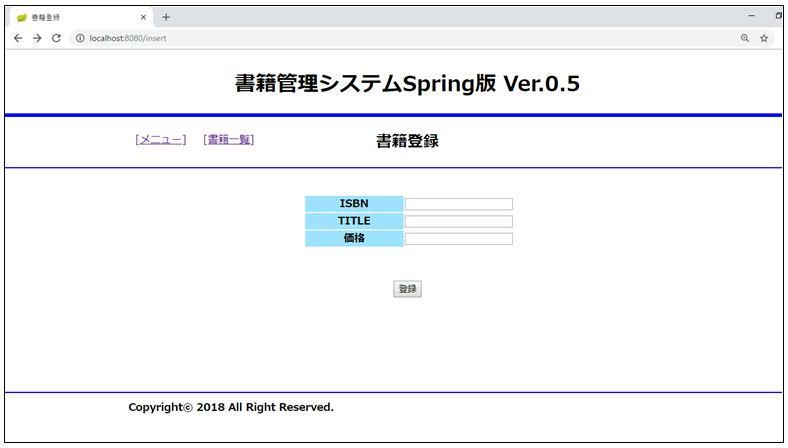
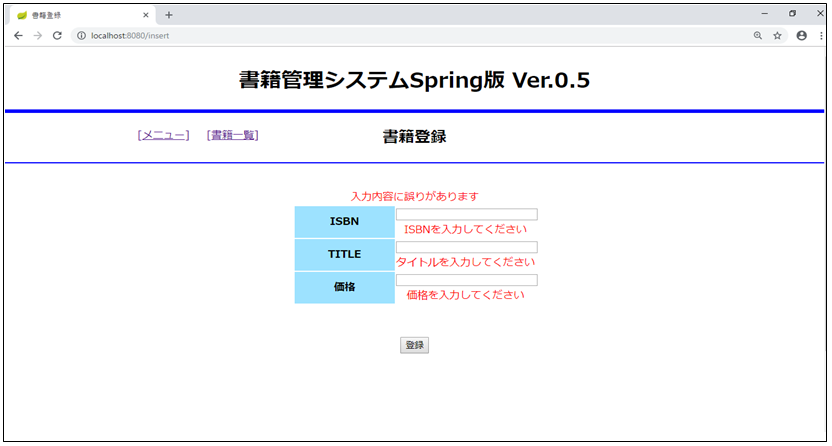
図 7.2 1:アプリケーションアクセス画面(書籍登録画面で何も入力せず、登録ボタンクリック)
図 7.2 2:アプリケーションアクセス画面(再度書籍登録画面が表示され、エラーメッセージが表示される)